![GallopadeLogo_BWC_web2.png]](https://support.gallopade.com/hs-fs/hubfs/GallopadeLogo_BWC_web2.png?height=40&name=GallopadeLogo_BWC_web2.png)
To complete a PDF+ assignment, students will open the assignment and select Tools from the top right.
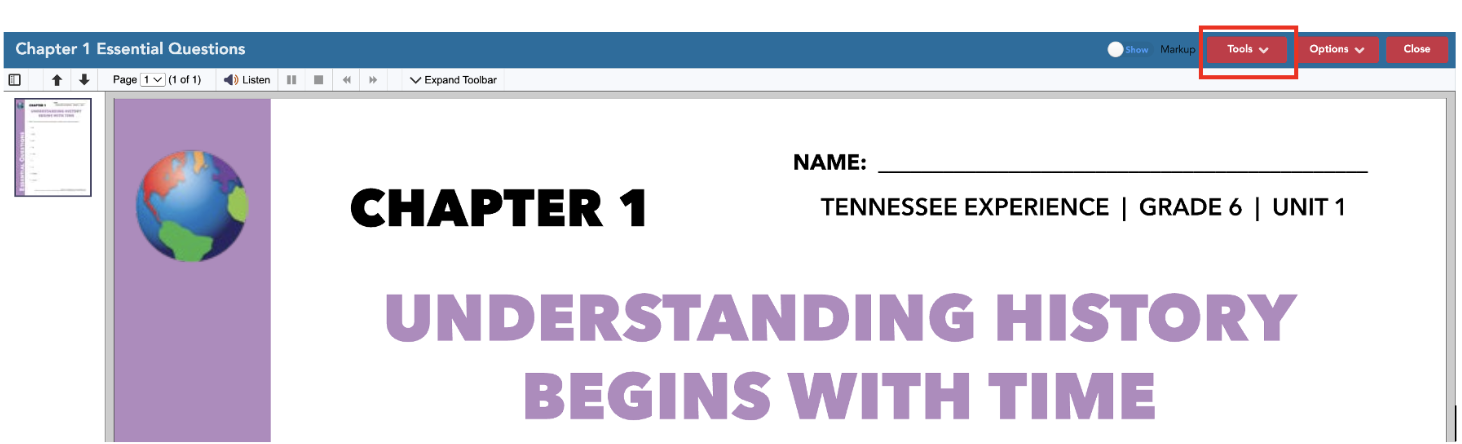
Selecting Tools will bring up the option to select highlights or annotations.
Select Annotations.

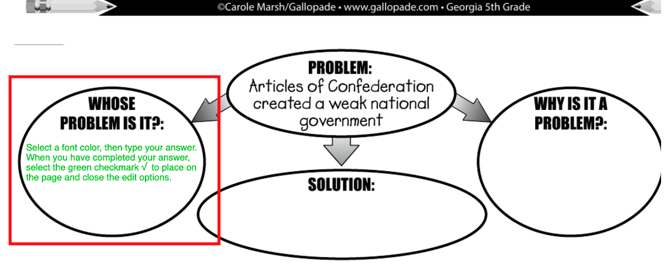
Annotation tools will automatically open to the text tool for typing. So users can click on the page and start typing in the text box.
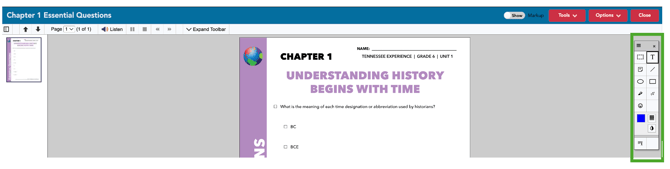
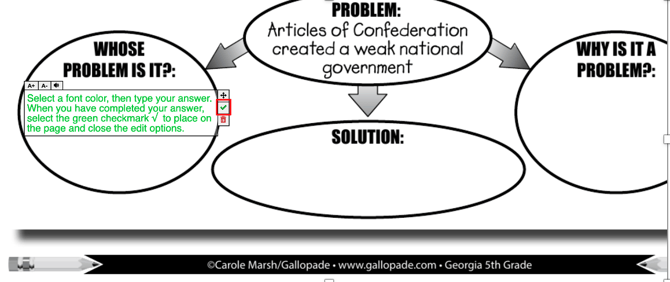
Text boxes expand as needed and include editing tools such as the option to make font bigger or smaller, move text, complete annotations, and delete.
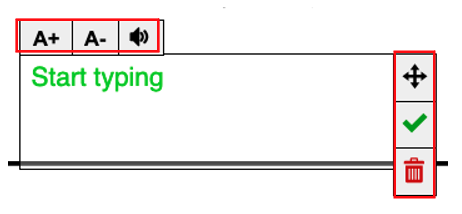

Click A- to make the font smaller.

Click the Read Aloud button to hear typed text read aloud.

Click the arrows (and then drag) to move your text on the page.
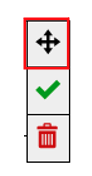
Click the red trashcan to delete annotations in the box.

Select the green checkmark √ (or click on the page outside of the box) to place the annotations on the page and close the text box when answer is complete.

Once you select the green checkmark to close your annotations or click outside the box, the editing box will disappear.
In order for annotation to automatically save, you must either select the green checkmark (√) or click on the page outside the annotations box.
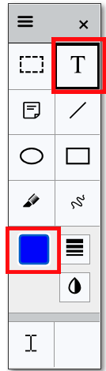
You can change the color for tools by selecting the text tool and then the color option.
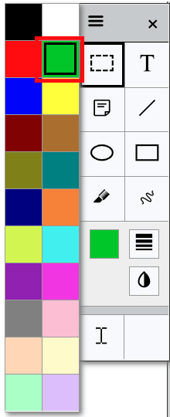
Once you select the color option, choose a color.
Here is a zoomed-in look at the menu of annotation tools.
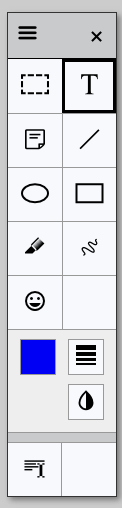
Select the Marquee Select tool to select an area of the page. After selecting the tool, you can click and drag to select an area in order to select multiple annotations for editing or deletion.
Select the Text tool to type directly on a page. 
Select the Sticky Note tool to add a sticky note. 
Select the Line tool to draw a line. 
Select the Ellipse tool to place a circle on the page .
Select the Rectangle tool to place a rectangle on the page. 
Select the Marker tool to place a shaded rectangle on the page, .
Select the Freehand tool to draw. 
Select the Select Color option to choose a color for the tool (Text, Line, Ellipse, Rectangle, Marker, or Freehand). 
Select the Stroke width tool to change the width of text, a line, an ellipse, a rectangle, or freehand drawing. Make your selection on the page, then select the Stroke Width tool to adjust the thickness.
Select the Transparency tool to adjust opacity/transparency of a tool (Text, Line, Ellipse, Rectangle and Freehand). 
Select the Read Text option to select text for Read Aloud while using annotations. 
List of PDF+ Teaching Tools